
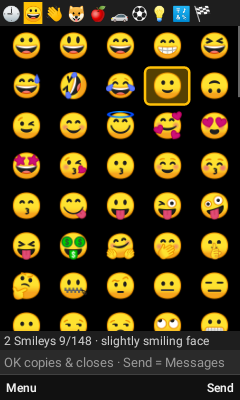
Features
- 1,900 emojis, no touchscreen neededMove with the arrow keys, press OK. Only shows emojis your phone can draw, so no empty boxes.
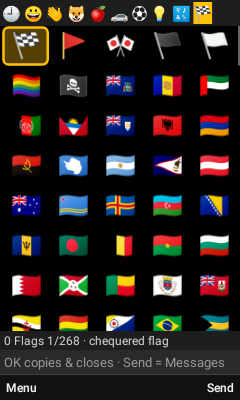
- Jump to a category with one key1 Recent, 2 Smileys, 3 People, 4 Animals … 9 Symbols, 0 Flags.
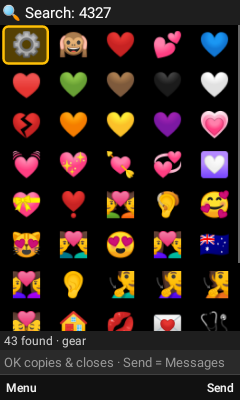
- T9 searchPress #, then type the name, like 4-3-2-7-8 for "heart".
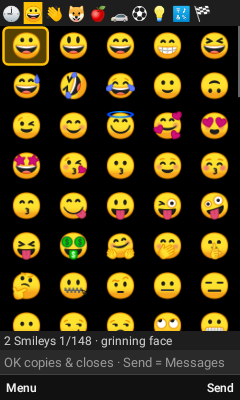
- Press OK: copied & closedPress OK on any emoji: it's copied and the app closes, ready to paste.
- Right key sends it to MessagesThe right softkey sends the highlighted emoji straight to a new text in Messages.
- Optional: select several at onceTurn on Menu → Select multiple emojis to pick a few, then copy or send them together.
- Opens from anywhereSet the voice command key to open Emoji Pad, press OK on an emoji and paste where you were typing.
- Remembers your favoritesThe Recent tab learns the emojis you use most.
- Optional emoji keyboardType emojis right into any text box (experimental).
- Tiny and fully offline115 KB, no internet and no permissions at all.
💬 Feedback or ideas? Email vn220apps@mail.tab.bot
More details
All keys
| Arrow keys | Move around the grid. ◀ ▶ at the ends switch category. |
| OK | Copy that emoji and close, ready to paste (Recent keeps it) |
| 1 – 9, 0 | 1 Recent · 2 Smileys · 3 People · 4 Animals · 5 Food · 6 Travel · 7 Activities · 8 Objects · 9 Symbols · 0 Flags |
| Volume ▲▼ | Page up / down |
| # | Search by name (T9). Back to finish. |
| Right softkey / Call | Send the highlighted emoji in Messages |
| Left softkey / hold 0 | Menu: Send, Share, Search, Categories, settings, Help |
| Back | Exit without copying |
| Select multiple | Menu → Select multiple emojis (off at first). When on: OK adds each emoji to a message at the bottom, * deletes the last one, Menu → Copy & close copies them all, and the right softkey sends them all. Two more settings appear then: Clear after copy and Close after copy. |
Set up the voice command key
Emoji Pad can open from the voice command key, next to any other app that does (a keyboard app, for example). To have the phone ask every time:
- Settings → Apps → the app the voice key opens now → Open by default → Clear defaults.
- Press the voice key. The phone asks Complete action using.
- Pick Emoji Pad (or the other app) and press Just once, not Always, so you get the choice each time.
Then press OK on an emoji: it's copied and you're back where you were, so just paste. If an app asks for voice typing, Emoji Pad can answer instead and the emoji goes straight in.
Emoji Pad's Menu → Voice button setup… shows which app the key opens now (with a button to clear it) and has a Test key check. If Emoji Pad never shows up in the list, send what that screen says to the feedback address below.
Turn on the emoji keyboard (optional)
Turn it on once on the phone: Settings → Language & input → switch on Emoji Pad keyboard (Emoji Pad's Menu → Emoji keyboard… can open that screen). If your phone hides it, from a computer: adb shell ime enable com.android.cts.emojipad/.EmojiKeyboard
Then in Emoji Pad: Menu → Emoji keyboard… → Choose keyboard → "Emoji Pad keyboard". In a text box, the arrows and OK insert emojis, * deletes, # searches and Back switches to your normal keyboard. It's experimental and not yet tried on a real VN220.